Accurate access to the Google platform is critical for local SEO performance, paid search optimization, attribution reporting, and automotive digital marketing analysis.
Giving the right profile permissions helps Dealer Teamwork verify tracking accuracy and troubleshoot issues. This helps connect Google products properly and improve local SEO visibility. Dealer Teamwork can analyze shopper behavior and conversion paths. It can also help optimize Google Ads campaigns and monitor organic search performance. These permissions help build more accurate reporting dashboards. Incorrect permission levels can prevent integrations from working properly and may limit available data.
Why Google Profile Permissions Matter for Dealership SEO and Reporting
Dealership marketing success depends on accurate data. The data comes from Google Business Profile, Google Analytics 4, Google Search Console, and Google Ads. When these platforms connect with the right permissions, your dealership sees local search activity more clearly. Your team can also track website traffic, shopper engagement, lead behavior, and organic search performance.
Dealer Teamwork uses this access to improve reports. It also strengthens SEO analysis. It helps clean up attribution and guides smarter digital marketing decisions.
Step 1: How to Give Access to Google Business Profile
Your Google Business Profile helps manage how your dealership appears in Google Search and Google Maps. This is one of the most important platforms for dealership local SEO. It affects how customers find your store, see your hours, get directions, call you, and interact online.
Required Google Business Profile Access Level
Required Access Level: Manager access
How to Add Dealer Teamwork to Your Google Business Profile
Sign in to Google Business Profile. Log in using the Google account that manages your dealership profile. Select your dealership location. If you manage multiple rooftop locations, choose the correct dealership location before adding access.

- Click the three-dot menu to open your Google Business Profile settings.
- Choose People and access.
- Click Add.
- Enter the email address provided by your onboarding coordinator
- Choose the permission level. Select Manager, then click Invite.
Existing dealership ownership is not affected when adding Dealer Teamwork as a Manager. If your dealer group has multiple rooftop locations, access must be granted individually for each applicable Google Business Profile.
Step 2: How to Give Access to Google Analytics 4
GA4 provides website traffic, engagement, lead attribution, and shopper behavior data. This helps Dealer Teamwork see how users use your dealership website. It shows where traffic comes from. It shows which marketing channels drive activity. It also shows how shoppers move through the site.
Required GA4 Access Level
Required Access Level: Viewer access is sufficient
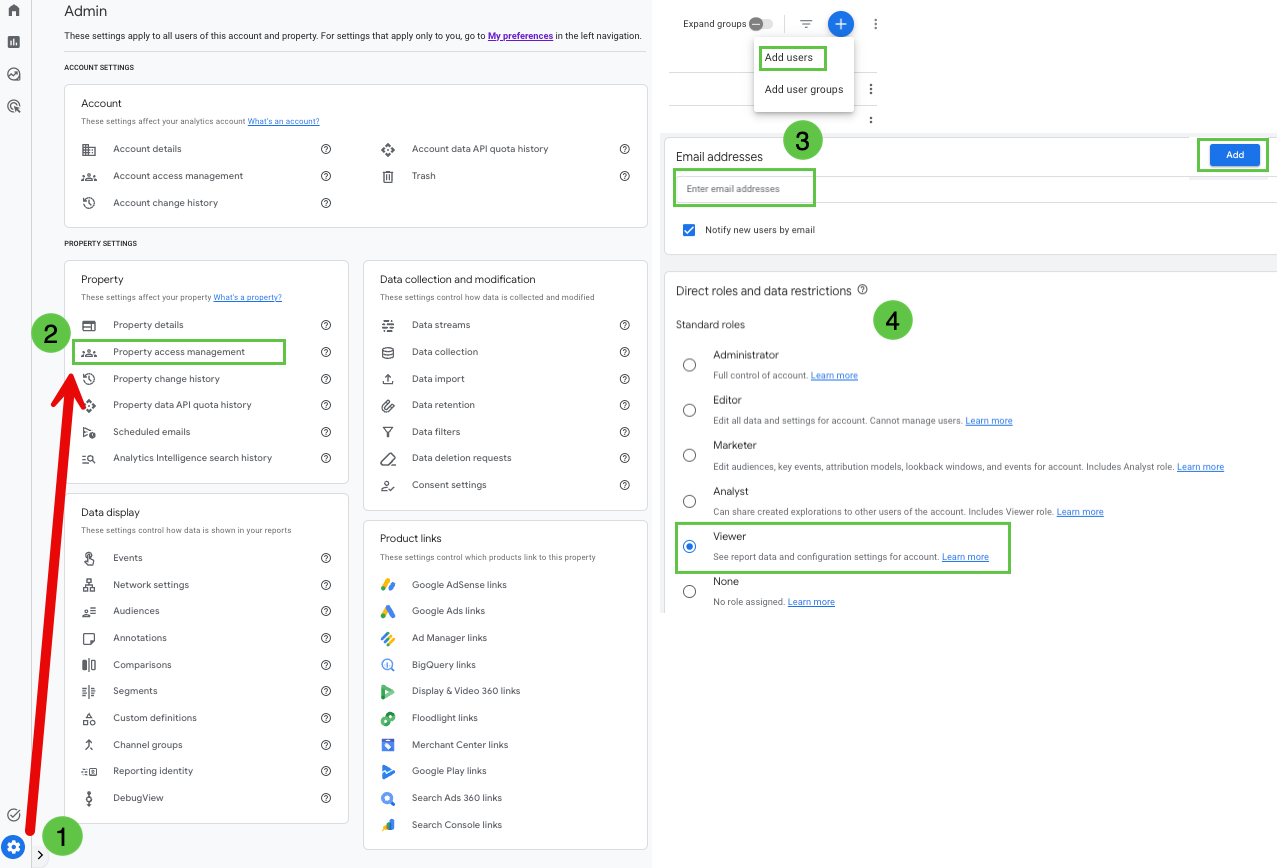
How to Add Dealer Teamwork in GA4 Property Access Management
Sign in to your Google Analytics profile. Use the account that manages your dealership analytics property. Select the correct GA4 property. Confirm you are inside the proper dealership GA4 property before adding access.
- Open Admin settings. Click the Admin gear icon in the lower-left corner.
- Under the Property column, select Property Access Management.
- Add Dealer Teamwork. Click the + icon, then select. Enter the email address given to you by your onboarding coordinator.
- Assign permissions. Select Viewer, then click Add. Viewer access allows Dealer Teamwork to review reporting data without changing your dealership’s GA4 configuration. This access supports analytics review, SEO reporting, conversion analysis, and dealership website performance insights.
Step 3: How to Add a User to Google Search Console
Google Search Console provides visibility into how your dealership website performs in organic Google Search. It helps identify search impressions, clicks, click-through rates, indexing health, technical SEO issues, and vehicle inventory visibility in Google. For automotive SEO, this platform is essential for understanding how your dealership website is being discovered and where additional optimization opportunities may exist.
Required Google Search Console Access Level
Required Access Level: Owner access
Why Dealer Teamwork Requests Owner Access in Google Search Console
We request Owner access to the Google Search Console profile. This ensures we have permission to link it to Google Analytics and Google Ads. This allows us to access more data and provide more accurate analysis. This does not change the true ownership of the profile. Owner access in Google Search Console helps Dealer Teamwork complete important data connections that support SEO reporting, paid search analysis, and cross-platform performance visibility. Your dealership, website provider, or verified account holder can remain the true owner of the property.
How to Add Dealer Teamwork to Google Search Console
Sign in to Google Search Console. Use the Google account that currently manages your dealership website property.
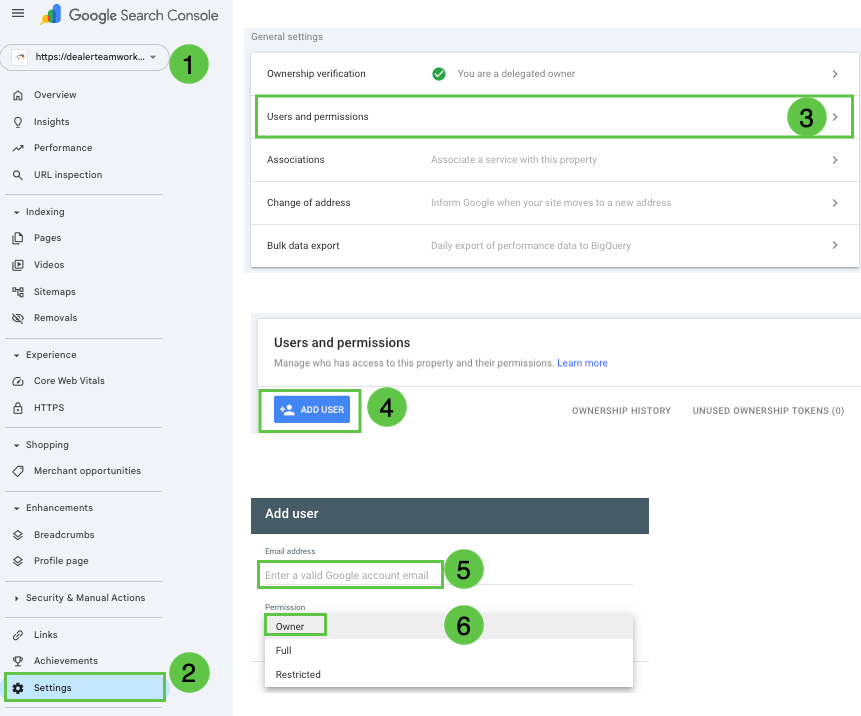
- Select your website property. Choose the correct dealership website property from the property selector.
- In the left navigation menu, click Settings.
- Open Users and permissions.
- Click Add User,
- Enter the email address used to grant access to the previous profiles.
- Select permission type. Choose Owner, then click Add.
What If Your Dealership Does Not Have Google Search Console Access?
If your dealership team does not currently have access to the Google Search Console property, Dealer Teamwork can help coordinate the request. We can send the access request directly to your website provider, website support team, hosting partner, or SEO vendor. The dealership contact will be CC’d on the request to get the required approval and keep the process transparent. This helps ensure the proper party approves access while giving your dealership visibility into the request.
Common Google Access Issues and Troubleshooting Tips
Many dealership staff members manage multiple Google accounts, so first verify that you are logged into the account that owns or manages the property. If you cannot add users, you may not have the required admin, manager, or owner permissions yourself. Another dealership employee, website provider, agency, or vendor may control the account.
Some dealerships may also have multiple versions of GA4 properties, Google Search Console properties, or Google Business Profiles. Confirm that access is granted to the active production property connected to your dealership website and location.
Why Proper Google Access Improves Dealership SEO, Analytics, and Reporting
Dealer Teamwork needs access to your original Google Analytics 4 property. This lets us create a baseline report before we begin ongoing optimization and reporting.
A baseline report gives your dealership a clear starting point using historical GA4 data. This helps us understand how your website has been performing before new recommendations, campaign adjustments, SEO updates, or reporting improvements are made. Creating a baseline report helps Dealer Teamwork:
- Measure future progress against your dealership’s historical data
- Identify changes in website traffic, engagement, and lead activity over time
- Compare current performance to prior trends and benchmarks
- Spot potential tracking gaps or reporting inconsistencies
- Understand how shoppers interacted with your website before optimization work began
- Provide more accurate analysis of marketing performance improvements
This makes future reports more useful. Your dealership can see what changed and where progress was made. It can also compare current performance to the data in your original GA4 profile.
FAQs
What access level does Dealer Teamwork need for Google Business Profile?
Dealer Teamwork needs Manager access to your Google Business Profile. This lets our team manage, review, and support local SEO visibility, dealership profile accuracy, and Google Business Profile performance. We can do this without changing the dealership’s profile ownership.
What access level does Dealer Teamwork need for Google Analytics 4?
Dealer Teamwork needs Viewer access to your original Google Analytics 4 property. Viewer access lets our team review website traffic, shopper behavior, and lead activity. It also includes attribution details and reporting data for analysis.
What access level does Dealer Teamwork need for Google Search Console?
Dealer Teamwork requests Owner access to your Google Search Console profile. This ensures we have the proper permissions to link Google Search Console to Google Analytics and Google Ads. This allows us to access more complete data and provide more accurate analysis. It does not change the true ownership of the profile.
Why does Dealer Teamwork request Owner access in Google Search Console?
Owner access is requested because Google Search Console permission levels can affect whether a user can complete certain integrations. Dealer Teamwork needs Owner access to connect Google Search Console with Google Analytics and Google Ads. This helps improve SEO reports, paid search insights, and website performance analysis.
Does adding Dealer Teamwork as an Owner in Google Search Console transfer ownership?
No. Adding Dealer Teamwork with Owner access does not transfer true ownership of your Google Search Console property. Your dealership, website provider, or verified account holder can remain the verified owner of the profile.
What if my dealership does not have access to Google Search Console?
If your dealership cannot access Google Search Console, Dealer Teamwork can send an access request. We will send the request to your website support contact. The dealership contact will be CC’d on the request. This allows proper approval and keeps the process transparent.
Can my website provider give Dealer Teamwork access to Google Search Console?
Yes. If your website provider has Owner access to your Google Search Console property, they can add us. They just need to give us the correct permission level. Dealer Teamwork can also send the request directly to the website provider and CC the dealership contact for approval.
Why is Google Search Console important for dealership SEO?
Google Search Console helps dealerships understand how their website performs in organic search. It provides data on search impressions, clicks, click-through rates, indexing issues, technical SEO problems, and Google Search visibility. For dealerships, this can help identify opportunities related to inventory visibility, local SEO performance, website health, and organic traffic growth.
Why is Google Business Profile access important for dealerships?
Google Business Profile access lets Dealer Teamwork review and support your dealership’s listing. The listing appears on Google Search and Google Maps. This is especially important for local SEO, dealership visibility, map results, phone calls, direction requests, and customer engagement.
Why is GA4 access important for dealership reporting?
Access to your original Google Analytics 4 profile helps create a baseline report of your historical data. We measure items such as website traffic, shopper engagement, lead activity, referral sources, and conversion behavior. Then, we can measure our improvements against your baseline performance.
Do I need to grant access separately for each dealership location?
Yes. If your dealer group has more than one rooftop location, you may need separate access for each location. This includes each Google Business Profile, GA4 property, and Google Search Console property. These items must be connected to each dealership website or location.